Label

Selamat datang di blog yang sederhana ini | Anda dapat membuka berbagai jenis Streaming TV dan RADIO Via internet | Temukan juga update informasi dari kami | Sebagai informasi blog ini sebagian copy dari berbagai sumber | Jangan lupa kunjungi Blog ini terus | Semoga Bermanfaat | Terima kasih

Minggu, 06 Juli 2014

WhatsApp


Cara kerja


WhatsApp Messenger adalah aplikasi pesan seluler lintas platform yang memungkinkan Anda untuk bertukar pesan tanpa harus membayar SMS. WhatsApp Messenger tersedia untuk iPhone, BlackBerry, Windows Phone, Android, dan Nokia, dan benar, semua ponsel ini bisa berkirim pesan satu sama lain! Ini dimungkinkan karena WhatsApp Messenger memakai paket data internet yang Anda pakai untuk mengirim email dan menjelajahi interenet, sehingga mengirim pesan dan tetap berhubungan dengan teman-teman tidak akan dikenakan biaya.
Selain fitur dasar berkirim pesan, pengguna WhatsApp dapat membuat grup, saling berkirim gambar, pesan video dan audio dalam jumlah tidak terbatas.

Download

Sabtu, 31 Mei 2014

CATU DAYA


1. Prinsip Kerja Catu Daya Linear

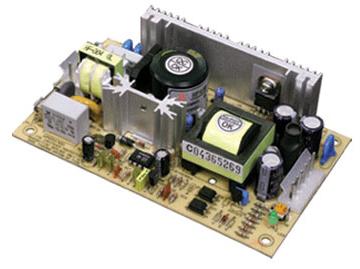
Perangkat elektronika mestinya dicatu oleh suplai arus searah DC (direct current) yang stabil agar dapat bekerja dengan baik. Baterai atau accu adalah sumber catu daya DC yang paling baik. Namun untuk aplikasi yang membutuhkan catu daya lebih besar, sumber dari baterai tidak cukup. Sumber catu daya yang besar adalah sumber bolak-balik AC (alternating current) dari pembangkit tenaga listrik. Untuk itu diperlukan suatu perangkat catu daya yang dapat mengubah arus AC menjadi DC. Pada tulisan kali ini disajikan prinsip rangkaian catu daya (power supply) linier mulai dari rangkaian penyearah yang paling sederhana sampai pada catu daya yang ter-regulasi.
2. PENYEARAH (RECTIFIER)
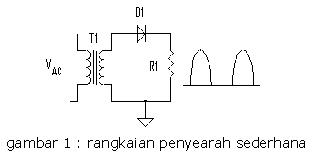
Prinsip penyearah (rectifier) yang paling sederhana ditunjukkan pada gambar-1 berikut ini. Transformator (T1) diperlukan untuk menurunkan tegangan AC dari jala-jala listrik pada kumparan primernya menjadi tegangan AC yang lebih kecil pada kumparan sekundernya.

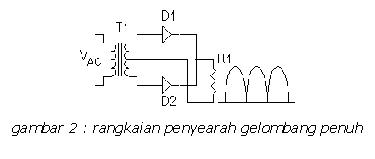
Pada rangkaian ini, dioda (D1) berperan hanya untuk merubah dari arus AC menjadi DC dan meneruskan tegangan positif ke beban R1. Ini yang disebut dengan penyearah setengah gelombang (half wave). Untuk mendapatkan penyearah gelombang penuh (full wave) diperlukan transformator dengan center tap (CT) seperti pada gambar-2.
Tegangan positif phasa yang pertama diteruskan oleh D1 sedangkan phasa yang berikutnya dilewatkan melalui D2 ke beban R1 dengan CT transformator sebagai common ground.. Dengan demikian beban R1 mendapat suplai tegangan gelombang penuh seperti gambar di atas. Untuk beberapa aplikasi seperti misalnya untuk men-catu motor dc yang kecil atau lampu pijar dc, bentuk tegangan seperti ini sudah cukup memadai. Walaupun terlihat di sini tegangan ripple dari kedua rangkaian di atas masih sangat besar.

Kamis, 24 Januari 2013

Membuat Boot USB


EDIT 2009/12/11: Microsoft Provides a tool to do this for you - Windows 7 USB/DVD Download Tool which is available for download here.  If you need instructions on how to use the tool, see the Microsoft Store Help on the ISO-Tool (http://store.microsoft.com/Help/ISO-Tool).

It surprised me to find that there are very few dead-simple guides to creating a bootable USB thumb/pen/flash drive for a Vista and/or Windows 7 installation.  I cobbled together the following from VistaPCGuy and another source I don’t remember right now.

This will walk through the steps to create a bootable USB flash drive for the purpose of installing a Vista or Windows 7 OS.  These instructions assume that you have a computer with Windows Vista installed on it.


Required:

USB Flash Drive (4GB+)
Microsoft OS Disk (Vista / Windows 7)
A computer running Vista / Windows 7
Step 1: Format the Drive
The steps here are to use the command line to format the disk properly using the diskpart utility. [Be warned: this will erase everything on your drive. Be careful.]

Plug in your USB Flash Drive
Open a command prompt as administrator (Right click on Start > All Programs > Accessories > Command Prompt and select “Run as administrator”
Find the drive number of your USB Drive by typing the following into the Command Prompt window:
diskpart
list disk
The number of your USB drive will listed. You’ll need this for the next step.  I’ll assume that the USB flash drive is disk 1.
Format the drive by typing the next instructions into the same window. Replace the number “1” with the number of your disk below.
select disk 1
clean
create partition primary
select partition 1
active
format fs=NTFS
assign
exit
When that is done you’ll have a formatted USB flash drive ready to be made bootable.
Step 2: Make the Drive Bootable
Next we’ll use the bootsect utility that comes on the Vista or Windows 7 disk to make the flash drive bootable.  In the same command window that you were using in Step 1:

Insert your Windows Vista / 7 DVD into your drive.
Change directory to the DVD’s boot directory where bootsect lives:
d:
cd d:\boot
Use bootsect to set the USB as a bootable NTFS drive prepared for a Vista/7 image. I’m assuming that your USB flash drive has been labeled disk G:\ by the computer:
bootsect /nt60 g:
You can now close the command prompt window, we’re done here.
Step 3: Copy the installation DVD to the USB drive
The easiest way is to use Windows explorer to copy all of the files on your DVD on to the formatted flash drive.  After you’ve copied all of the files the disk you are ready to go.

Step 4: Set your BIOS to boot from USB
This is where you’re on your own since every computer is different. Most BIOS’s allow you to hit a key at boot and select a boot option.

I used these instructions to get my new Dell Mini 9 laptop loaded with Windows 7 (the PDC bits).  HTH.

Sabtu, 04 Agustus 2012

Jumat, 29 Juni 2012